
Connect your own Amazon business
Private seller beta · Guide reviewed 27 October 2026
Follow one step at a time. You do not need to write code. An API is the connection that lets OX work with Amazon; authorization is your permission to use it.
You: sign in to Amazon, check your business, review permissions and submit your own applications. Your setup helper: sets up OX on your computer and checks the connection. Secrets stay on your computer.
Start with my Amazon account My OX already works — check it
Screenshots are official examples, not your account. Where Amazon publishes no current screen image, follow the named controls and source link. Do not guess if your screen differs.
About this guide and your privacy
Set up and evaluate OX Amz MCP for your own company, one authorization at a time. Start with read-only checks. Amazon Appstore publication is a later decision.
This guide collects no passwords or tokens. Complete approval steps on Amazon and save credentials directly in your protected local configuration. Checkboxes are temporary notes, not verified approval, and are not saved when you leave. Print this page for a durable checklist.
Already using OX? Start at step 10: validate your existing access. If a check fails, return to the matching setup step. Do not create duplicate apps or tokens just to follow the guide.
New setup? Follow steps 1–10 in order. Keep this tab open; portal buttons open a new tab. Use Ctrl+P (Windows) or Cmd+P (Mac) to print or save a PDF. No fixed approval time is promised.
Screenshot key: Amazon reference images show where controls live; they are not proof of your approval. LWA images are Amazon's published example screens, last updated in 2023; current layouts can differ. Do not copy any example credential or screenshot your own secrets.
1. Choose what you want to try
- Start with one Amazon store and one country.
- Choose viewing stock, orders and sales first.
- Leave advertising and extra services for later if you do not use them.
- Ask your OX setup helper to keep live changes switched off.
What you should see: You have a short list of things to test.
I’m stuck — help me resolve this
Not sure? Start with stock and sales only.
Detailed instructions and technical reference
Required: your own Seller Central account, SP-API private app and OX runtime. For advertising: Ads developer access, separate Ads consent and the correct advertiser profile. Optional: AMC, DSP, Attribution, audiences, Marketing Stream and notifications.
- Use one configured account, named
default, and one marketplace first. - Start with inventory, catalog, orders without restricted buyer details, finances and advertising reads.
- Keep
WRITE_MODE=dry-runandSPAPI_GENERATED_WRITES=disabled. A campaign-management grant is not a promise of read-only Amazon access; OX's write gate is separate. - For each connection record: not needed, awaiting Amazon approval, configured, read verified, or blocked. A green readiness check alone does not prove an Amazon permission.
2. Sign in to the right Amazon business
- Click “Open Seller Central” at the top of this step. Keep this guide open in its own tab.
- Enter your Amazon sign-in details on Amazon only.
- Complete the security code Amazon sends or asks your authenticator to show.
- Check the business name and selected country in Seller Central.
- Use the main account owner’s login for developer setup. If you use an employee login, ask the owner to complete this part.
What you should see: The correct business and country are visible after sign-in.
I’m stuck — help me resolve this
Wrong business or no owner access? Stop here and use the account-access draft.
Detailed instructions and technical reference
Have ready: company account sign-in, MFA device, administrator email, business name, target country and the workflows you want to test. Passwords stay on Amazon's site.
- Sign into the correct company Seller Central account as its primary user; use your normal MFA.
- Confirm the Professional selling account and company information. Record the seller/merchant ID from Account Info and the marketplaces you actually operate in, without copying credentials into this page.
- Keep seller ID, marketplace ID, Ads profile ID, SP-API application ID and LWA client ID distinct. They identify different things and are not interchangeable.
- For the US beta, OX uses marketplace
ATVPDKIKX0DERand the NA endpoint. Use Amazon's marketplace IDs and regional endpoints for other markets. Seeing a marketplace in a participation response does not prove every service is enabled there.
Stuck here? Checks and a support draft
You are done when: the company and marketplace in Seller Central match the beta plan. If Develop Apps is missing, check the primary-user identity and developer registration status before proceeding.
3. Ask Amazon to approve your private connection
- Open Develop Apps at the top of this step. If Amazon sends you to Solution Provider Portal, use that portal.
- In Seller Central, open the menu, then Apps and Services, then Develop Apps. In the portal, use Settings, then Developer Profile.
- If a profile is already approved, keep it. Do not register twice.
- For a new profile, enter your company contact details.
- Under Data Access, choose the private-developer option for your own company.
- Describe what you will use the connection for. Ask your OX setup helper which security controls are in place; do not guess.
- Read Amazon’s terms yourself. Submit only when every answer is accurate.
- Check the administrator email and your case for Amazon’s reply. Current guidance asks for replies within five days; follow the deadline in your case.

What you should see: Amazon confirms approval, or you have a case number while waiting.
I’m stuck — help me resolve this
Pending or rejected? Open the matching draft and answer the exact question Amazon asks.
Detailed instructions and technical reference
If your existing OX app and roles are already approved, inspect that record instead of creating a duplicate.
- Open Seller Central → Apps and Services → Develop Apps. If migrated, use Solution Provider Portal → Settings → Developer Profile.
- For a new profile select the private developer option for integrating your own company. Enter contact details, requested data, actual use cases and security controls.
- Explain the internal OX workflows you will run. Describe where credentials and data live, who can access them, encryption, retention, incident handling and deletion as they actually exist. Do not claim controls you have not implemented.
- Review Amazon's agreements and submit personally. Monitor the administrator's email and the case; answer Amazon's follow-up questions within its deadline.
Completion evidence: approved developer profile and the roles granted, with a date. Amazon private developer instructions.
Stuck here? Checks and a support draft
What to prepare for the application
- Contact: the company's accurate legal/contact information and a monitored administrator email.
- Use cases: name the exact internal work, such as inventory visibility, financial reconciliation, listing inspection and sales reporting. Explain why each requested role is needed.
- Data: identify what is read, where it is stored, how long it is retained, who can access it and how it is deleted.
- Controls: describe implemented access restrictions, encryption, backups, logging and incident response. A checklist in this app does not establish compliance.
- Follow-up: record the case reference and check its actual deadline; approval is not automatic.
Starting wording, only if true: “We use OX Amz MCP internally for our own company's Amazon account. The beta reads operational data and previews proposed changes. We are not onboarding unrelated sellers.” Add your real data flows and controls; do not submit this sentence as a complete security application.
4. Choose only the permissions you need
- A “role” is Amazon’s name for permission to use a group of services.
- Write down the jobs you selected in step 1.
- Use the table in the detailed instructions to match those jobs to roles.
- Check which roles Amazon approved on your developer profile.
- Check that the same roles are selected on your app.
- If a role is missing, explain why your business needs it when you request that role. Wait for approval before testing it.
What you should see: The permissions match your selected jobs.
I’m stuck — help me resolve this
Do not select every role just in case. Use the missing-role draft if a required option is absent.
Detailed instructions and technical reference
Approval of a developer role, selection of that role on the application, and seller authorization are separate steps. Inspect the app's current roles before changing anything. Amazon's operation-specific requirements take precedence over this planning map.
| Beta use case | Role candidates |
|---|---|
| Catalog and listings | Product Listing |
| Prices and offers | Pricing |
| Orders and inventory | Inventory and Order Tracking; Amazon Fulfillment where applicable |
| FBA inbound/outbound | Amazon Fulfillment |
| AWD | Amazon Warehousing and Distribution; account eligibility also required |
| Fees and settlements | Finance and Accounting |
| Sales, analytics and reports | Selling Partner Insights; Brand Analytics for applicable brand reports |
| Optional customer workflows | Buyer Communication, Buyer Solicitation, Direct-to-Consumer Shipping or Tax Invoicing, only as needed |
OX's docs/ROLES.md is a curated mapping, not evidence that your credentials have all roles.
Brand Analytics can require Brand Registry eligibility. Restricted buyer information adds separate restricted-role
approval and, where required, Restricted Data Token handling. Leave PII workflows outside the initial beta.
Review Amazon's role definitions and the reference for each operation. After a role change, follow Amazon's reauthorization instructions before retesting.
5. Give your own app permission
- Open Develop Apps and find your OX app. If none exists, follow “New app” in the details below.
- Use the small menu beside Edit app and choose Authorize. Labels may vary in the newer portal.
- Check the app name and intended seller account before continuing.
- Only if the selected account is wrong, use the sign-in-to-that-account link and sign in to the correct owner account.
- Choose Authorize app only if you need a new authorization. Keep an already-working connection.
- Save the refresh token directly in your protected local setup file with your trusted setup helper. Never paste it in this guide or chat.

What you should see: Your helper can validate the matching app credentials and seller authorization.
I’m stuck — help me resolve this
Missing button or wrong account? Stop before generating another token and use this draft.
Detailed instructions and technical reference
Click-by-click: existing app or new app
- Existing: open Develop Apps, locate the OX app and inspect its application type and roles. If its authorization already passes step 10, retain it and skip token generation.
- New: select Add new app client; enter your chosen internal app name, select the SP-API application type and Sellers where offered, then choose only the approved roles for your beta.
- Review the displayed settings before saving. This is a private application; an Appstore listing is not a prerequisite.
- For the correct app, choose Edit app, then View under LWA credentials. Transfer the ID/secret straight into your private local file; close the credential display afterwards.
- Return to the app's authorization action, choose the intended company account, and use Authorize app only when a new authorization is needed. Save the token locally.
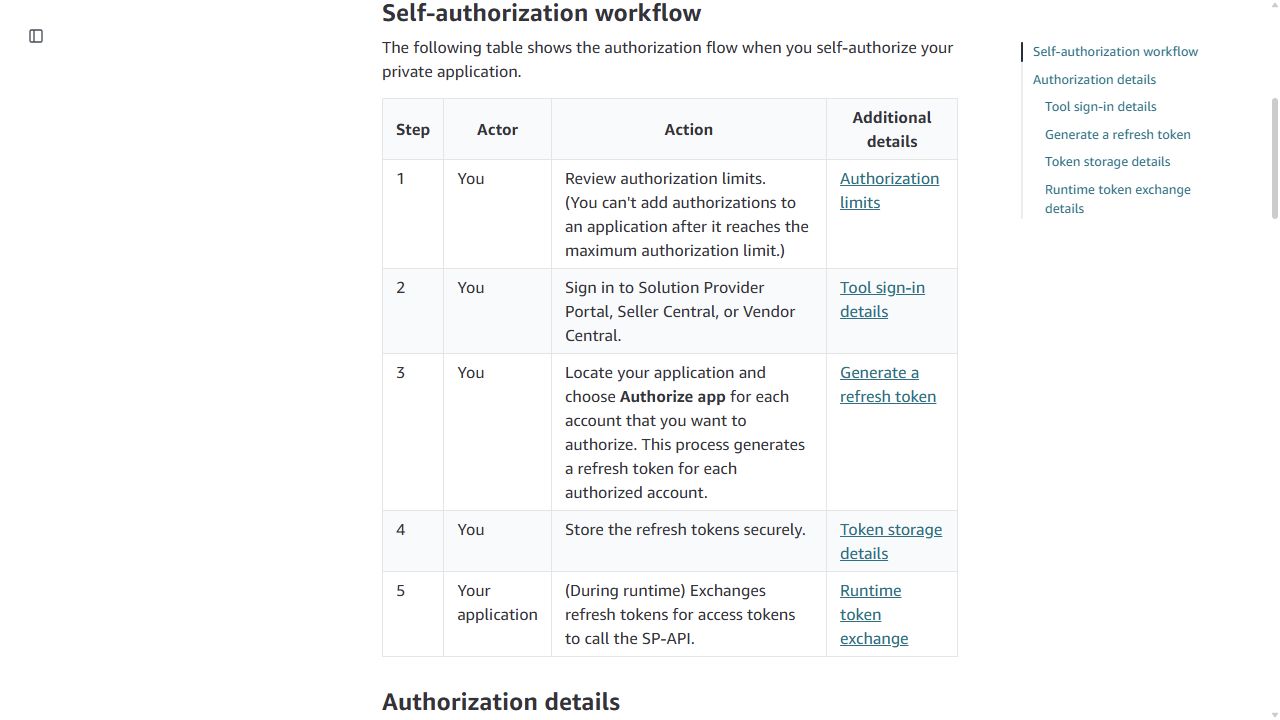
Use the primary account user and confirm the selected seller when regional accounts are merged. Record the authorization date and app identity in your beta notes, never the token. Creating another token does not revoke older ones.
There is no need to use this site's public OAuth callback or publish an Appstore listing for this step. At runtime OX exchanges the refresh token with Amazon for a short-lived access token.
Amazon self-authorization procedure.
Stuck here? Checks and a support draft
You are done when: a matching SP-API client ID, client secret and refresh token are saved for the intended seller, or your existing set passes validation. Do not replace working access unnecessarily.
6. Let OX read your connection safely
- If your OX connection already works, keep the existing setup and go to step 10.
- For a new setup, ask your trusted OX setup helper to prepare a protected file on your computer.
- Open the detailed field checklist below together. Match each value to its named Amazon field.
- Enter secret values directly in that private file, outside shared or synchronized folders.
- Have the helper connect OX to that file, restart OX and confirm live changes remain off.
What you should see: OX reports that it found the protected configuration.
I’m stuck — help me resolve this
This is a helper task: do not experiment with terminal commands or send anyone your secret file.
Detailed instructions and technical reference
Field-by-field checklist — values go in your private file
| OX field | Where it comes from |
|---|---|
| SP_API_CLIENT_ID / SP_API_CLIENT_SECRET | The same SP-API app's LWA credentials screen |
| SP_API_REFRESH_TOKEN | That app's self-authorization for your seller |
| SP_API_SELLER_ID | Seller Central account information / Merchant Token |
| SP_API_MARKETPLACE_ID | Amazon's marketplace table, not the seller ID |
| SP_API_BASE_URL | The regional SP-API endpoint for that marketplace |
| SP_API_ACCOUNT_NAME | Your stable OX selector; use default for this beta |
| OX_ENV_FILE | Absolute path to the private file; the MCP launcher supplies this pointer |
Before saving: use plain UTF-8 text, one KEY=value per line, no duplicate keys, and the exact names above. Do not paste this file into chat or commit it. If the existing connector works, keep its established file and permissions.
- Use the approved OX connector checkout and its
.env.exampleas the field reference. Create a private file outside the checkout and OneDrive/Dropbox/Google Drive, with access limited to your OS account. - Point
OX_ENV_FILEto that file's absolute path. The onboarding app'sOX_ONBOARDING_ENV_FILEis different and is not the connector configuration. - Enter
SP_API_CLIENT_ID,SP_API_CLIENT_SECRET,SP_API_REFRESH_TOKEN,SP_API_SELLER_ID,SP_API_MARKETPLACE_ID,SP_API_BASE_URLandSP_API_ACCOUNT_NAME=default. - For US set
SP_API_BASE_URL=https://sellingpartnerapi-na.amazon.com. Keep the dry-run settings from step 1 and restart OX after changes.
SELLERS_STORE_PATH at the encrypted store produced by the old
web onboarding flow. The legacy connector reader cannot decode it. This private beta uses the existing
environment-backed account instead. For durable multi-account use, follow the connector's paired account/credential
store and keyring instructions; do not copy tokens between incompatible store formats.Local credential files are sensitive even outside Git. Keep secure backups and avoid terminal transcripts, screenshots, chat messages and browser storage. This guide never asks you to paste credentials.
Stuck here? Checks and a support draft
Windows setup for a new private file
- Open your user profile folder in File Explorer and create a private configuration folder outside synchronized directories.
- Copy the connector's example into that folder and name it
amz-mcp.env. Enable file extensions in Explorer and confirm it is not secretly namedamz-mcp.env.txt. - Review Properties → Security so ordinary other users cannot read it. Follow your workstation's approved account policy.
- Edit it in a local text editor, fill the matching fields, save, then supply its absolute path through
OX_ENV_FILEin the MCP process environment. - Close the editor and fully reconnect the MCP client. Confirm credential location in readiness output.
Do not type credential values into shell commands: command history and captured terminal output can retain them.
7. Connect advertising only if you need it
- If you do not use Amazon Ads, skip this stage.
- Open Amazon Ads and check that you can see the correct advertiser account.
- Open the API access guide below and confirm your company has Ads API approval.
- With your setup helper, open Login with Amazon and use your Ads-approved security profile.
- Use the screenshot selector above for the profile, consent information and Allowed Return URLs. This means the exact address Amazon sends you back to.
- Have your helper verify the callback address before starting consent. If the address is rejected, stop; do not guess a replacement.
- Sign in and review Amazon’s permission screen yourself.
- Ask your helper to verify the returned advertiser and one read-only advertising result.
What you should see: The intended advertiser appears and a read test succeeds.
I’m stuck — help me resolve this
Seller access does not include Ads access. Use Ads support for this stage.
Detailed instructions and technical reference
Set up the LWA security profile and callback
- Open the LWA console with your developer identity. Reuse the existing Ads-approved profile if you have one.
- For a new profile choose Create a New Security Profile, enter an accurate name/description and a real privacy-notice URL; add a logo if appropriate. Save only after reviewing the information.
- If an existing profile is not LWA-enabled, select it under Select a security profile and follow the console's enablement prompts. Do not create another profile just because it is absent from the enabled list.
- Open the profile's Manage menu → Web Settings → Edit. Add the exact callback under Allowed Return URLs. Allowed Origins is a different setting and does not replace a redirect URI.
- Keep protocol, hostname, port and path consistent with the OAuth helper. Save the settings. The profile still needs Amazon Ads API approval; merely creating LWA credentials is insufficient.
The example screenshots below come from Amazon's LWA guide. They show an example “Woot” app, not your OX app. Never reuse the displayed sample IDs, secret or example.com addresses.
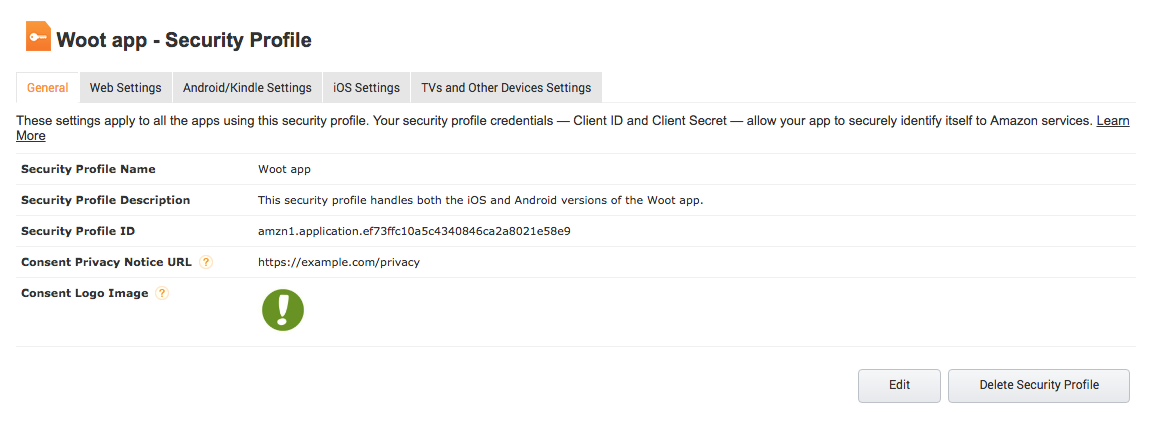

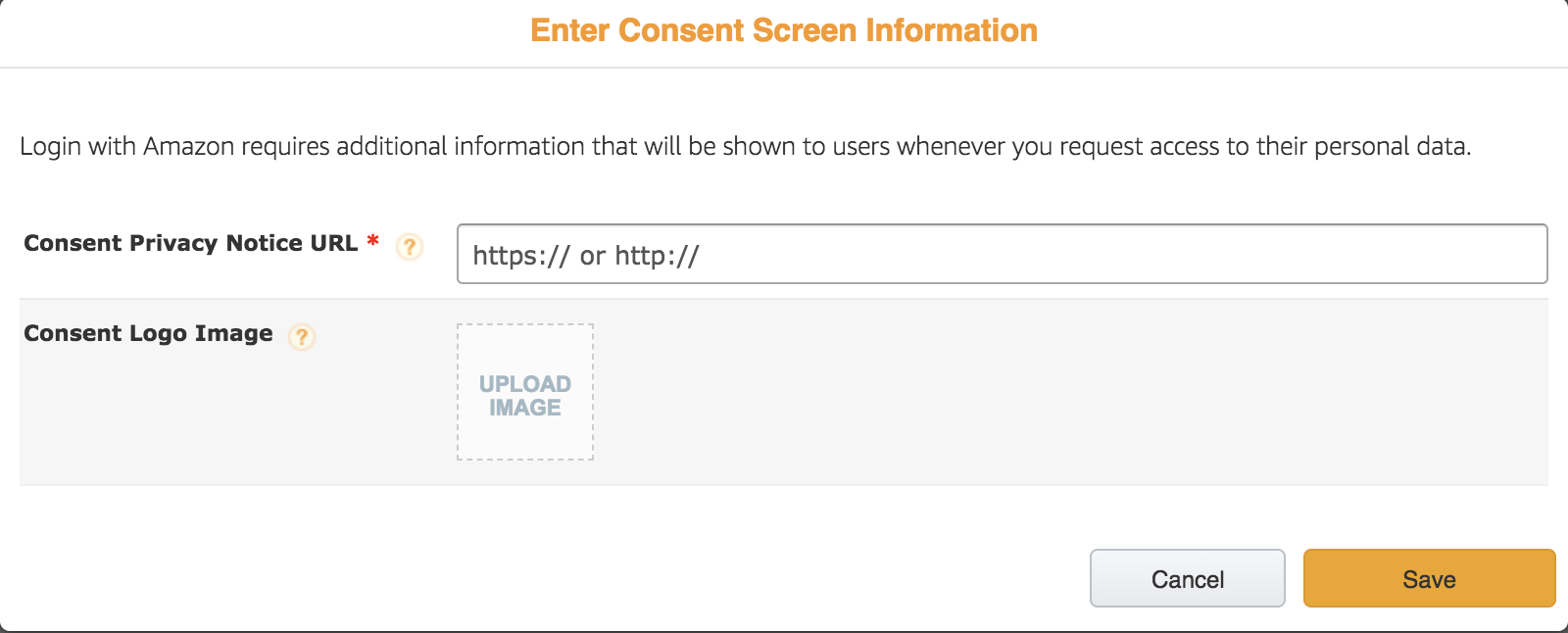
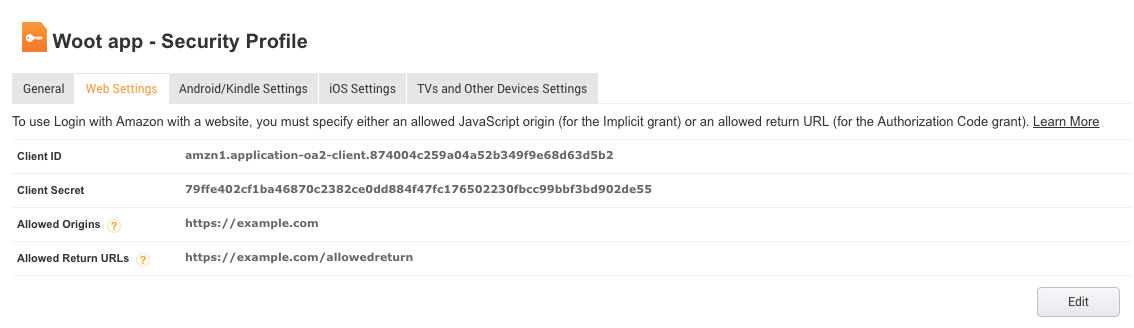
SP-API authorization does not grant Ads access. Skip this section only if advertising is excluded from your beta.
- Confirm your advertiser-console access for the correct company and marketplace, then confirm or apply for Amazon Ads API developer access through the Ads onboarding guide.
- Use the LWA security profile/client approved for Ads. Configure its allowed return URL to match the selected authorization flow exactly. Do not assume the SP-API client is Ads-approved.
- Request
advertising::campaign_managementfor ordinary sponsored advertising. Addadvertising::audiencesonly for the relevant audience/Data Provider workflow and eligibility. - Sign into Amazon as the advertiser-authorized user and approve the requested access. The callback must validate state; a new integration should also use PKCE. Exchange the one-time code server-side for tokens.
- OX includes
npm run get-ads-token. Its existing callback ishttp://localhost:8000/auth/callback; do not run the helper unless the Ads console accepts that exact callback. Current Ads documentation specifies HTTPS return URLs. If registration rejects localhost, stop and adapt the helper to an approved HTTPS callback; do not improvise another redirect. - The existing helper prints the refresh token. Run it only in your own private terminal with recording disabled, save the result directly, and clear the sensitive output. Do not run it through an agent's captured tool output.
- Set
AMAZON_ADS_CLIENT_ID,AMAZON_ADS_CLIENT_SECRET,AMAZON_ADS_REFRESH_TOKEN,AMAZON_ADS_REGION=NAfor the US. Restart OX, runads_list_profiles, match the advertiser and country, then setAMAZON_ADS_PROFILE_ID. A seller ID is not a profile ID.
Amazon Ads authorization reference. Do not request a fictional separate “write” OAuth scope: permission and OX's write policy are distinct.
Stuck here? Checks and a support draft
You are done when: token exchange succeeds, the intended advertiser appears in profile discovery, and a bounded read succeeds. A consent screen by itself is not the final check.
8. Leave extra services off until needed
- Read the names in the details below.
- For each service, mark it “not needed”, “already approved” or “needs approval” in your own notes.
- If you do not recognize a service, leave it out of the first beta.
- If needed, open its official product guidance and ask the account owner to confirm eligibility.
- Have your helper test access before considering it connected.
What you should see: Your notes show which extra services you need and whether access is approved.
I’m stuck — help me resolve this
Use the product-access draft; SP-API Notifications has its own separate draft.
Detailed instructions and technical reference
- AMC: confirm account/instance provisioning and your user's access. Run
amc_list_accounts, thenamc_list_instancesusing the returned canonicalentityId. Account discovery alone does not prove instance, query or audience permissions. - DSP: requires DSP account access and applicable API approval. Use
ads_dsp_capabilitiesto inspect OX coverage. Do not treat a capability inventory as a successful provider request. - Attribution / audiences: confirm product eligibility, advertiser rights and the operation's scope. Keep unsupported or untested endpoints outside beta acceptance.
- Marketing Stream / SP-API notifications: these are separate delivery integrations that may need AWS destinations and resource policies. Provision only after selecting a supported dataset/event and reviewing its current setup. Existing polling reads do not require turning them on.
- Profitability:
COGS_CSV_PATHis your own cost data, not an Amazon authorization. Reconcile costs and SKU coverage before trusting margins; missing costs must not be assumed to be zero.
Use AMC documentation and each product's current eligibility guidance. Mark optional items “not in this beta” instead of requesting every permission.
9. Open OX in your assistant
- Open the assistant where you normally use OX Amz MCP.
- If OX is already listed and working, keep that connection.
- For a new connection, ask your setup helper to follow the approved connector README for that assistant.
- Close and reconnect the OX session after setup.
- Ask OX to report the selected account, country and whether live changes are off.
What you should see: OX is available and shows the intended account with dry-run enabled.
I’m stuck — help me resolve this
If OX is missing, fix the local connection before contacting Amazon.
Detailed instructions and technical reference
- Build/start the approved connector according to its README. For a local client use its stdio entry point;
give the process the
OX_ENV_FILEpath rather than embedding secrets in client configuration. - Reconnect the client so it loads the new process. Run
connector_statusand verify version, account selection, intended marketplace anddry-run. - Use
accountName: defaultexplicitly for the beta.sellers_useis deprecated; it does not select a process-wide seller. Tool-package filtering reduces clutter, not authorization. - Remote HTTP hosting is optional. It adds a separate OX login/bearer authorization, TLS and origin/host
restrictions. Follow
docs/HOSTED_OPERATIONS.mdbefore exposing it. OX client authentication never replaces Amazon's SP-API or Ads consent.
10. Check your connection
- Open your OX assistant.
- Copy the safe check request below into that assistant. It contains no secrets.
- Ask it to report pass/fail and short explanations only.
- Compare one stock or sales result with the same country and date in Seller Central.
- Write down what passed and what still needs help. Do not test live changes yet.
Safe request to copy into your OX assistant
Check my OX Amazon connection using read-only checks. Run connector_status, connector_readiness and spapi_validate_credentials for accountName default. Run ads_oauth_diagnostics only if advertising is part of my beta. Do not make live changes. Report pass/fail and the next step without showing tokens, secrets or customer records.
What you should see: The required reads pass and you can compare a result with Amazon.
I’m stuck — help me resolve this
A checkmark here is your note, not an automatic approval. For failures, use the troubleshooting table.
Detailed instructions and technical reference
Run these in order. Keep only timestamps, tool names, pass/fail, status codes and bounded counts in the report. Never store tokens, raw customer records or full provider responses in beta notes.
connector_readiness: account inventory, credential location, audit chain and artifact keyring.connector_status: expected version, account and dry-run policy.spapi_validate_credentials: successful marketplace participation check for the selected account.ads_oauth_diagnostics: token exchange, profile discovery, bounded Sponsored Products read and AMC account discovery. Missing scope metadata means scope claims are unknown even when a functional read succeeds.- For each selected business workflow run one bounded read, compare its result with the same date/marketplace in Seller Central or the Ads console, and record any discrepancy. Pagination, reporting delay and timezone matter.
- Test mutation previews only after read checks. Review exact account, payload and audit record. A preview is not evidence of live write authorization. Keep live changes out of this beta until separately approved.
Beta exit: required reads pass; account/marketplace routing is correct; operator can repeat setup; secrets remain out of logs; errors are understandable; every optional service is classified. Local mocked tests, tool counts and a configured flag do not establish provider coverage.
11. Resolve one problem at a time
- Find the message that failed. Note the time and the step number.
- Open “Find my problem” below and match the symptom.
- Try the first check only. Then repeat the failed read once.
- If it still fails, open the matching support draft.
- Replace the bracketed placeholders with facts. Remove statements you have not checked.
- Paste the draft into the linked Amazon support page and submit it yourself. Keep the case number.
What you should see: The issue is fixed, or you have a case number from the right Amazon support team.
I’m stuck — help me resolve this
Never attach passwords, secret files, tokens or unredacted screenshots.
Detailed instructions and technical reference
- Not configured: check the environment-file path and variable presence, then restart the connector.
- Token exchange rejected: verify the matching client pair and authorization; investigate revocation or expiry. Do not repeatedly mint tokens or print them to diagnose the problem.
- 403: check app roles, developer approval, seller authorization, product eligibility and marketplace/profile. Authentication success does not prove permission for that operation.
- No Ads profiles / AMC instances: confirm the signed-in user's advertiser rights and provisioning. Do not substitute arbitrary identifiers.
- 429 or service failure: honor retry guidance and use bounded retries; do not broaden permissions.
- Rotation and renewal: record Amazon's actual renewal requirements for the authorization type and monitor authorization health. Revoke exposed credentials in Amazon, replace the local set and restart OX. A newly generated token does not by itself revoke old credentials.
Authorization troubleshooting, in order
Identify the failing boundary first: Amazon sign-in → developer approval → app roles → seller consent → LWA token exchange → operation access → OX configuration. Fix that boundary before requesting more permissions.
| Symptom | Check first / next action | Draft |
|---|---|---|
| Develop Apps missing or profile pending | Correct company, primary user, private developer profile and open case status. Do not create duplicates. | Developer access |
| Role absent or denied | Operation's required role; approved developer roles versus app-selected roles; actual business justification. | Role request |
| Authorize app unavailable / authorization limit | App type, owner, linked region and authorization count. Stop repeated token generation. | Self-authorization |
| invalid_client | Matching client ID/secret for the correct service, rotation status, exact config file, process restart. Never expose values. | LWA exchange |
| invalid_grant | Token/code belongs to that client; revocation; single-use code freshness; exact redirect URI for code exchange. Reauthorize only when indicated. | LWA exchange |
| 401 / 403 from SP-API | Distinguish token exchange from API failure. Verify endpoint region, app roles, authorization and eligibility using request metadata. | SP-API denial |
| Basic orders work; buyer details/report denied | Check operation-specific restricted-data rules and approved role; request an RDT only where required. Keep PII excluded until approved. | Restricted data |
| Ads redirect mismatch / invalid scope / state mismatch | Exact allowed return URL, Ads-approved client and documented scope. For state mismatch restart the legitimate flow; never disable state checks. | Ads authorization |
| Ads profile list empty or wrong country | Correct advertiser user rights, API entitlement and region. Choose a profile from discovery, not a seller ID. | Advertiser access |
| AMC/DSP/other product denied or empty | Provisioning, user grants, product eligibility and canonical entity/instance/account type. General Ads success is insufficient. | Product access |
| Notification/Stream delivery fails | Separate subscription and destination policies, region, account type and supported event/dataset. Do not grant blanket AWS permissions. | Notifications / Ads Stream |
| OX says not configured; Amazon works elsewhere | OX_ENV_FILE absolute path, exact variable names, OS permissions and restart. Onboarding env and connector env are different. Fix locally first. | Local setup |
| No sellers after web onboarding | Legacy encrypted-store mismatch: use the private environment-backed account, not the incompatible store. | Local setup |
| 429 / 5xx / timeout | Rate limit or availability is not an authorization grant. Honor backoff and avoid retry storms. Escalate persistent failures with request IDs. | SP-API case |
| Previously working access stops | Recent rotation, renewal, revocation, app/account changes, stale process and matching credential set. | Recovery |
Amazon SP-API authorization reference. Status codes are clues, not proof of one cause. Record the actual provider error and operation before escalating.
Support desk: what to check and what to send
Use the stage-specific draft below only after its local checks. Replace every bracketed field with verified facts; delete anything you cannot substantiate. Select the draft text and copy it into Amazon's authenticated case form. This site never sends a case or saves your edits.
Use Seller Central Help for account/primary-user issues; developer support for SP-API registration, roles and API failures; Ads support for Ads API or advertiser access. Reuse the existing case and ask for routing when the category is unclear.
Safe evidence bundle
- UTC timestamp, failing step, operation/API version, region, HTTP status, sanitized error code and Amazon request ID.
- Role approval/app selection status, authorization date and a control check that succeeded.
- A cropped screenshot of the error or status. Remove email addresses, customer data, credentials, authorization codes, cookies and URL query values before attaching it.
- Share account/app identifiers only in the relevant authenticated Amazon support case when needed.
- Never attach .env files, client secrets, refresh/access tokens, unrestricted HAR files, browser cookies, Authorization headers or raw customer/order payloads.
Developer registration or primary-user access
Use when: Develop Apps is unavailable, the private profile is pending, or Amazon requests more information.
Where: SP-API Developer Support.
Subject: Private developer access for our own seller account — [CASE REFERENCE]

We are integrating only our own company's seller account with OX Amz MCP for an internal beta.
Company / marketplace: [COMPANY AND COUNTRY]
Developer profile status shown: [EXACT STATUS]
Signed-in account role: [PRIMARY USER / OTHER — VERIFIED]
Submission date and existing case: [DATE / CASE]
Our requested use cases: [ACTUAL WORKFLOWS]

We have checked the signed-in company, primary-user access and the existing developer profile.
Please confirm the outstanding requirement or the correct private-developer review path.
If further security information is required, please identify the specific control and evidence needed.
We will respond with our actual implementation; we are not requesting public Appstore listing.
App registration, missing role or role approval
Use when: The required role is absent, denied, or approved on the profile but unavailable on the app.
Where: SP-API Developer Support.
Subject: Clarification of SP-API role access for [OPERATION / USE CASE]

Private application ID: [APP ID — SUPPORT PORTAL ONLY]
Marketplace / endpoint region: [MARKETPLACE / REGION]
Operation and API version: [OPERATION / VERSION]
Developer-profile role status: [ROLE / APPROVED OR PENDING]
Application role selection: [WHAT THE APP SHOWS]
Authorization or reauthorization date: [DATE / NOT DONE]
Business reason for this access: [SPECIFIC OWN-COMPANY WORKFLOW]

We have compared the operation's documented role requirements with the profile and app.
Please confirm which role or eligibility condition is missing, and whether reauthorization is required after approval.
We are not requesting unrestricted access or restricted buyer information unless explicitly justified below.
Restricted-data need, if any: [NONE / PRECISE DATA AND PURPOSE]
Private self-authorization cannot be completed
Use when: Authorize app is missing, disabled, reaches a limit, or fails before issuing a token.
Where: SP-API Developer Support.
Subject: Unable to self-authorize private seller application

Private app ID and selected region: [APP ID / REGION — SUPPORT PORTAL ONLY]
Account role checked: [PRIMARY USER STATUS]
App/developer status: [STATUS SHOWN]
Where it fails: [PORTAL > DEVELOP APPS > ACTION]
Visible error, with secrets removed: [ERROR TEXT / CODE]
Time of attempt, including timezone: [TIME]
Existing authorization count, if visible: [COUNT / UNKNOWN]

We are authorizing our own company, not another seller. We have not generated repeated tokens to work around the error.
Please confirm the permitted self-authorization path and any authorization-limit or account-eligibility issue.
Attached: a cropped screenshot of the error and app status, with credentials and personal details removed.
LWA token exchange: invalid_client or invalid_grant
Use when: Token exchange fails. Choose the support channel for the credential set that failed; never send tokens.
Where: SP-API Developer Support (SP-API) or Ads support (Ads).
Choose by service: the developer link above is for SP-API only. For Ads credentials, open Amazon Ads Help / Contact us.
Subject: LWA token exchange failure for [SP-API / AMAZON ADS]

Credential family: [SP-API / ADS — DO NOT MIX]
Application/client identifier: [IDENTIFIER — AUTHENTICATED SUPPORT ONLY]
HTTP status and sanitized provider error code: [STATUS / CODE]
UTC time and request ID, if provided: [TIME / REQUEST ID]
Grant type used: [refresh_token / authorization_code]
Was this a previously working authorization? [YES / NO; LAST SUCCESS]
Recent relevant change: [ROTATION / REAUTHORIZATION / REDIRECT CHANGE / NONE]

Locally checked: matching client ID/secret pair, token source, pinned configuration file, restart after changes,
and exact redirect URI where a one-time code is exchanged. No credential values are attached.
Please confirm whether the application authorization remains active and the appropriate recovery procedure.
We can provide redacted request metadata, not client secrets, refresh/access tokens or authorization codes.
SP-API 401/403 or restricted-data access
Use when: LWA works but an SP-API operation is denied, or a specific report/buyer-data operation needs restricted access.
Where: SP-API Developer Support.
Subject: SP-API access denied for [OPERATION / API VERSION]

Private app / marketplace / region: [APP / MARKETPLACE / REGION]
Operation and HTTP method: [OPERATION / METHOD]
UTC time, HTTP status, error code and request ID: [SANITIZED METADATA]
Control check: [MARKETPLACE PARTICIPATION PASSED / FAILED; DATE]
Profile role approval and app role selection: [VERIFIED STATUS]
Latest authorization date: [DATE]
Does this operation request restricted data? [NO / YES / NOT YET CONFIRMED]
If yes: approved restricted role and requested resource/data elements: [DETAILS, NO CUSTOMER DATA]

We have checked endpoint region, account selection and the operation's documented permissions.
Please identify the missing role, authorization, restricted-data requirement or product eligibility condition.
Please do not enable broader access than the stated use case requires.
Amazon Ads API application or account access
Use when: Ads API developer access is pending/denied, consent fails, or the intended advertiser has no returned profile.
Where: Amazon Ads Help Center → Contact us.
Subject: Amazon Ads API access for our own advertiser — [CASE REFERENCE]

Company and advertiser marketplace: [COMPANY / COUNTRY]
Ads API application/access-request status: [STATUS / CASE]
LWA client identifier: [ID — AUTHENTICATED SUPPORT ONLY]
Signed-in user's advertiser permissions: [VERIFIED ROLE / UNKNOWN]
Problem stage: [API APPROVAL / CONSENT / CALLBACK / TOKEN EXCHANGE / PROFILE DISCOVERY]
Region and exact return URL without code/state/query secrets: [REGION / REGISTERED BASE RETURN URL]
Requested scope: [SCOPE ACTUALLY REQUESTED]
Sanitized error and UTC time: [CODE / TIME]
Profile discovery result: [HTTP STATUS / COUNT; NO TOKENS]

We are testing internal OX Amz MCP access to our own advertiser, separately from SP-API self-authorization.
Please confirm the required API entitlement, advertiser-user permissions or permitted callback configuration.
If this belongs with API technical support, please route the case to that team.
AMC, DSP, audiences, Attribution or delivery integration
Use when: General Ads access succeeds but a specific product is unprovisioned, empty or forbidden.
Where: Amazon Ads support / product account representative.
Subject: [PRODUCT] API eligibility or provisioning for our existing advertiser

Product and intended operation: [AMC / DSP / ATTRIBUTION / AUDIENCES / MARKETING STREAM]
Business use case: [PRECISE INTERNAL USE]
Existing Ads API access: [READ VERIFIED / CONFIGURED ONLY]
Advertiser region and product-console access: [REGION / STATUS]
Relevant account/entity/instance ID: [ID — AUTHENTICATED SUPPORT ONLY]
Observed result: [HTTP STATUS / ERROR CODE / EMPTY COUNT]
UTC time and request ID: [TIME / ID]
For delivery products: destination type/region and sanitized policy validation: [DETAILS / NOT APPLICABLE]

Please confirm product eligibility, account/instance provisioning, user grants and operation-level entitlement.
Account discovery alone does not prove these permissions. We will leave this product excluded from the beta until confirmed.
No campaigns, audiences, subscriptions or billable resources should be created merely to diagnose this request.
SP-API Notifications destination or subscription
Use when: An SP-API notification destination/subscription fails; Amazon Ads Marketing Stream uses the Ads product draft instead.
Where: SP-API Developer Support.
Subject: SP-API Notifications access or destination validation for [NOTIFICATION TYPE]

Private application / region: [APP ID / REGION — AUTHENTICATED SUPPORT ONLY]
Notification type and intended workflow: [TYPE / PURPOSE]
Failing operation: [DESTINATION / SUBSCRIPTION / DELIVERY]
Grant used as required by the operation: [SELLER AUTHORIZATION / GRANTLESS — VERIFIED]
Destination type and region: [SQS / EVENTBRIDGE / REGION]
HTTP status, sanitized error, UTC time and request ID: [METADATA]
Checks completed: [ROLE / GRANT TYPE / DESTINATION POLICY / REGION]

Please confirm the operation's authorization requirements and the specific destination or subscription validation failure.
We can supply a sanitized policy excerpt through this case. No AWS keys, tokens or message payloads are attached.
We are not requesting blanket AWS permissions or creation of new billable resources.
Reauthorization, rotation or revoked access
Use when: Previously working access stops after a renewal, revocation, rotation or account change.
Where: Relevant SP-API or Ads support case.
Choose by service: the developer link above is for SP-API only. For Ads credentials, open Amazon Ads Help / Contact us.
Subject: Restore intended private application access after [CHANGE]

Service: [SP-API / ADS]
Application and region: [IDENTIFIERS — SUPPORT PORTAL ONLY]
Last successful read and first failure: [UTC TIMES]
Authorization status shown in Amazon: [STATUS]
Change made and when: [ROTATION / REAUTHORIZATION / REVOCATION / OTHER]
Sanitized status/error/request ID: [METADATA]
Local checks completed: [MATCHING CREDENTIAL SET / PROCESS RESTART / CORRECT ACCOUNT]

Please confirm the current authorization state and the correct renewal/recovery sequence.
We will not send old or new tokens. If credentials were exposed, we are following revocation/rotation procedures,
not treating a newly issued token as proof that the old one was invalidated.
Reply when Amazon asks for more information or denies access
Subject: Re: [EXISTING CASE] — response to [SPECIFIC QUESTION]

Thank you. Below are our answers in the same order as your request.
1. [AMAZON QUESTION]: [FACTUAL ANSWER AND IMPLEMENTED CONTROL]
2. [AMAZON QUESTION]: [FACTUAL ANSWER / NOT IMPLEMENTED YET]
Evidence supplied: [SANITIZED DOCUMENT / STATUS / REQUEST ID]
Our remaining gap and remediation plan: [REAL GAP / OWNER / TARGET DATE]

Please confirm whether this addresses the stated requirement and identify any remaining item.
If access is not eligible for our private own-company use case, please confirm the applicable eligibility condition
and any permitted alternative. We will not claim an unimplemented control or ask to bypass Amazon's policy.
Use the deadline shown in your case. Never invent a certification, security assessment, public listing, company relationship, approval or remediation date to obtain access.
12. Finish the private beta first
- Keep using the app only for your own company during this beta.
- Record which workflows passed, which failed and what was difficult.
- Decide later whether you want to serve other sellers.
- Only then review public application registration and Appstore requirements.
What you should see: Your beta report records what worked, what failed and what to do next.
I’m stuck — help me resolve this
You do not need to publish an Appstore listing merely to run this private beta.
Detailed instructions and technical reference
Continue the private beta without an Appstore listing. Consider public registration only when you want to serve other organizations and have evidence of demand, stable workflows and support capacity.
That decision needs a separate review of Amazon's public developer/listing requirements, privacy and security controls, tenant isolation, durable encrypted credential onboarding, revocation, support and operating costs. A private-beta pass does not approve a public product.
Existing public-app authorization flow (advanced / legacy) is retained for compatibility. It is not the recommended path for this own-seller beta.